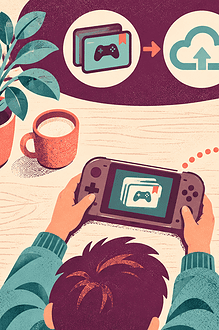


Cross-play can let a child join friends who use a different console, phone or computer. Linking accounts can also move progress and purchases between devices. The convenience is real, but so is the complexity: one game session may now involve a console account, a publisher account and another platform’s friends, privacy rules and recovery systems.
Connect only after you know which account owns what and where the strongest control lives.
Draw the account map
Write the child’s game profile in the middle of a page. Around it, add every account that must be linked: console network, game publisher, mobile store, streaming service or social login. For each one, note the username, recovery owner, age setting and whether a payment method is present.
Do not share an adult’s main account simply to make linking easier. Use a separate child account with accurate age information where the platform supports it. PlayStation advises separate accounts for children, while Xbox family settings can manage multiplayer, friend requests and cross-network play.
Check what becomes visible
Linking may expose a username, avatar, friend list, activity status or gameplay history across services. Preview the child’s profile from another account where possible. Ask:
- Will real names or existing friends be imported?
- Can players from other networks send invitations or messages?
- Does the game create a public publisher profile?
- Can clips, screenshots or achievements be shared automatically?
- Can the child find or be found through a phone contact or social account?
Choose the least public setting that still supports the friend or feature the child wants.
Review controls at every layer
A console restriction may not automatically control the publisher account, and an in-game setting may not change platform voice chat. Open the family controls, platform privacy page and game settings separately. Confirm cross-network play, communication, friend requests, user-created content, spending and location.
EdCaptain’s multiplayer gaming and voice-chat agreement can help the family decide approved contacts and chat modes. For a feature-by-feature check, use Check Chat, Location and Stranger Contact Before a Child Uses an App.
Understand ownership before purchases
Ask which account will own downloadable content, currency, subscriptions and saved progress. A purchase on one platform may not transfer to another even when the same game profile appears. Currency balances may be platform-specific. Read the publisher’s current linking and unlinking rules before paying.
Never test linking with an account that holds irreplaceable progress until recovery details and backups are confirmed. Some services limit how often an account can be unlinked or connected to a different profile.
Test with one known friend
Enable cross-play for a short session with someone the family knows. Check how the friend appears, which chat channel opens and whether the child can mute, block and report. Then sign out and verify that the expected controls remain in place on the next device.
For younger children, keep cross-network contacts to a caregiver-approved list. Older children can explain the account map and lead the privacy review. Teenagers may manage more independently, but recovery ownership, spending approval and urgent help routes should remain clear.
Keep an unlinking plan
Save official support links and note which account should be disconnected first if the family leaves a platform. Remove access from devices you sell, return or share. Do not delete a publisher account until you know whether it holds cross-platform progress.
Recheck after a major game or platform update. Cross-play is safest when the family sees it as a connection among several systems—not a single switch that carries every protection with it.