
- Describe the movement before naming the fault
- Choose the support route for the controller you actually have
- Record useful settings before a temporary change
- Follow Nintendo’s checks in a deliberate sequence
- If the issue appears only in one game
- Know when to hand the problem over
- Sources and further reading
By EdCaptain editorial desk · Published
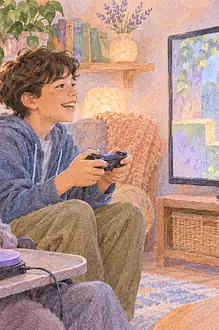
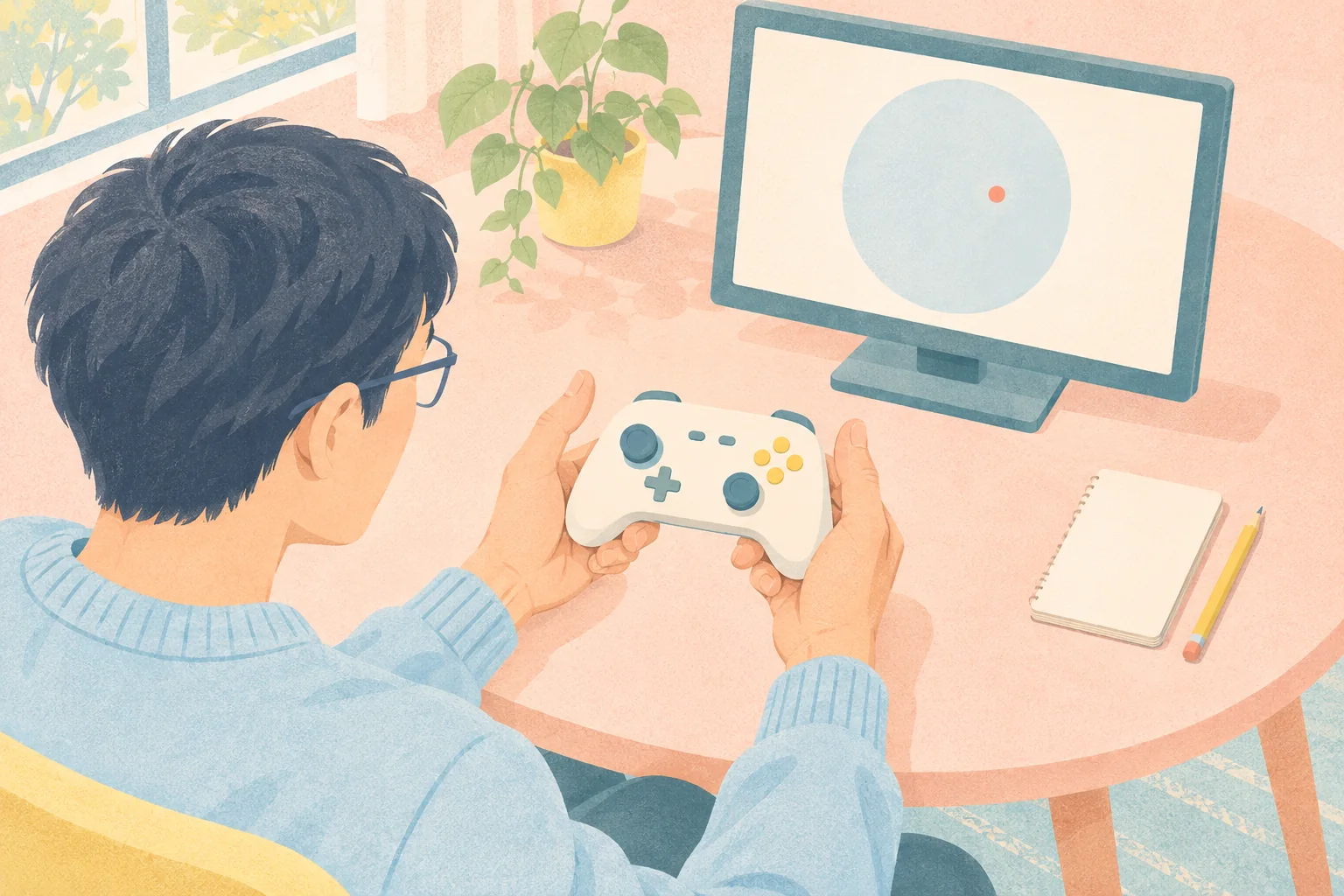
“I’m not moving it!” Your child lifts a thumb, but the character keeps walking or the camera turns. The first useful response is to look at what happens together. An unexpected movement is something to investigate, not evidence that the child is careless or making excuses.
This guide is for the adult checking Joy-Con 2 stick input on Nintendo Switch 2. It helps you gather observations, protect useful settings and find the correct manufacturer checks. It cannot establish from one symptom that a controller has a particular hardware fault.
Describe the movement before naming the fault
Ask the child to show you the problem once, if they want to. Choose a safe stopping point rather than interrupting a live match or asking them to risk valued progress. Then take over the investigation yourself.
Write a short description: which controller and stick, which game or menu, what moved, and whether the controller was attached or used wirelessly. “The camera keeps turning left after the right stick is released” tells support more than “the controller is broken”.
Note whether it happens consistently or only sometimes. If you cannot reproduce it, say that. Do not make the child repeat the same frustrating sequence to prove their account. You can acknowledge what they experienced while the cause remains uncertain.
Choose the support route for the controller you actually have
Nintendo’s controller troubleshooting overview separates Joy-Con 2 from the original Joy-Con and provides different routes for attached recognition, wireless response, power and motion-control problems. Start with the correct model and symptom.
A controller that is not recognised as attached needs a different check from one that is recognised but sends unexpected stick input. Avoid collecting several unrelated reset instructions and trying them all. Keep a simple note of each supported step and its result.
If the equipment belongs to a school, library or another household, tell the responsible adult before changing its setup. Borrowing a controller does not authorise opening it or erasing the owner’s chosen configuration.
Record useful settings before a temporary change
Remapped controls may be deliberate. A family might have changed an input to make play more comfortable or accessible. Photograph or write down the relevant setup privately before accepting a reset prompt, and agree how it will be restored.
Nintendo’s Joy-Con 2 stick troubleshooting guide says a wrench icon indicates remapped input and recommends standard stick input while troubleshooting. Treat that as a temporary comparison, not a judgment that the child’s arrangement was wrong.
If you do not know how to recreate an essential configuration, ask the person who set it up or manufacturer support before changing it. Keep normal child-account protections in place. A stick-input check does not require deleting the child’s profile or saved games.
Follow Nintendo’s checks in a deliberate sequence
Open the full manufacturer guide alongside the console, rather than relying on a remembered menu path. Its checks include whether the attached controller is recognised, current console and controller software, and removing interfering covers before calibration. For a docked setup, it also specifies the supported HDMI cable.
Use the branches that fit your situation and make one change at a time. After a step, note whether the behaviour changed. If you changed three settings at once, neither you nor support will know which comparison helped.
When the guide directs you to the stick test, Nintendo’s Switch 2 calibration instructions use this route:
- Check the console is updated, then open its system settings.
- Choose Controllers & Accessories, then Calibrate Control Sticks.
- Select the affected stick as instructed and follow the on-screen prompts to check its response and calibrate where directed.
Control-stick and motion-control calibration are separate options. Use the one relevant to the problem. Follow the official follow-up instructions if a completed calibration is not reflected in the test; do not turn that into repeated factory resets or speculative save deletion.
Calibration is a check and supported adjustment, not a promise of repair. If a prompt is unclear or the stick cannot complete the process, record that result and stop for advice.
If the issue appears only in one game
Nintendo’s stick guide also directs families to check that game’s updates and electronic manual. Motion controls can affect how input feels in games that support them. Check the actual title’s instructions before changing that option, and keep a note of its original setting.
A single-game result is useful evidence, but it does not by itself identify the cause. Tell support what worked elsewhere and what did not. Avoid solving the immediate problem by removing access features the child needs or changing every sensitivity setting at random.
Once the fault is addressed, our game accessibility check can help confirm that the restored controls still fit the player’s real tasks. A controller that responds to an adult is not yet proof that the child’s preferred setup has been recovered.
Know when to hand the problem over
Nintendo’s guidance directs unresolved calibration or stick-response problems to repair support. Use the Nintendo service route for your country and follow its instructions about what equipment to send. Do not assume another region’s booking, cost or turnaround applies.
Do not ask a child to open the controller, force the stick or spray products into it. An online repair clip is not a substitute for guidance that fits the exact equipment and your ability to handle it safely.
Send a concise account: controller model, attached or wireless use, observed movement, relevant settings, and the results of the manufacturer’s checks. Our private support-report guide helps organise steps and attachments without exposing child or account details.
Offer another suitable way to spend the time while you wait. You can say, “I’ve seen the problem. I’m checking the controller, and you don’t need to keep fighting it.” The goal is a usable, understood setup—not making the child play around an unresolved fault.
Sources and further reading
- Nintendo: finding the correct controller troubleshooting route
- Nintendo: Joy-Con 2 input checks and repair follow-up
- Nintendo: control-stick and motion-control calibration
Read our editorial policy and review methodology.