

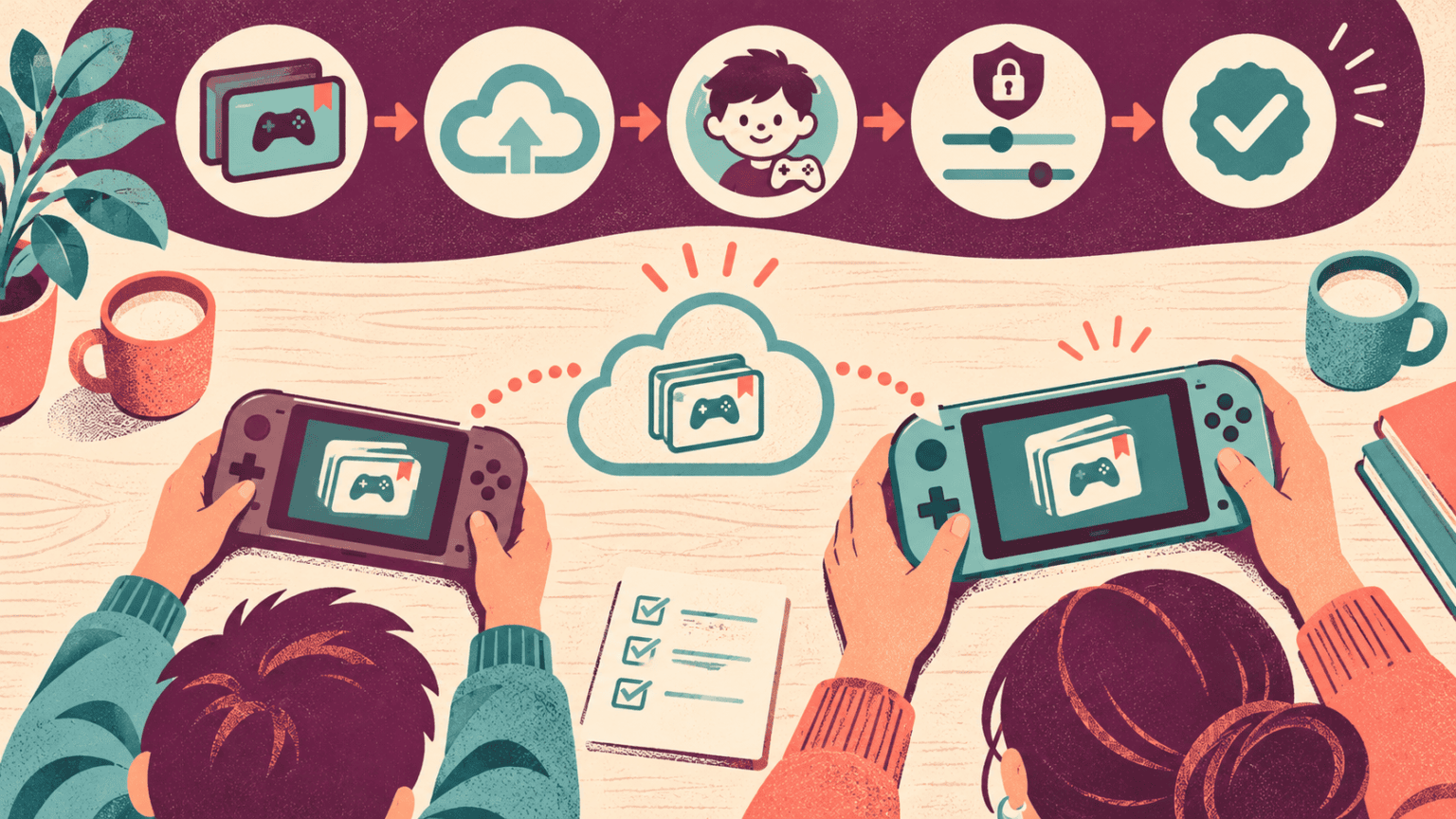
A new console can arrive with excitement and a hidden risk: the family assumes that every save, purchase and setting will follow the child automatically. In reality, progress may live on the old device, in a platform cloud, inside a publisher account or under the wrong adult profile.
Do not reset, sell or trade the old device until the child has opened the important games on the new one and the family has verified what moved.
Map ownership before touching the consoles
For each important game, write down:
- the user profile that launches it;
- the platform or publisher account linked to that profile;
- whether the game was bought digitally or on disc;
- where the save appears to be stored;
- which subscription enables cloud backup or online play;
- whether purchased currency or downloadable content is platform-specific.
Use a child’s separate supervised account rather than continuing years of play inside a caregiver’s profile. Moving to a new device is a good time to correct account structure, but do not create a new profile casually if the existing save is permanently tied to the old one.
Read the current transfer route for each platform
Use the manufacturer’s support page for the exact source and destination models. Transfer, backup and restore conditions can vary by account, software and console. Some transfers are offered only during initial setup. Some games use their own transfer process or do not support ordinary cloud saves.
Check whether both consoles must be present, connected to the internet, updated or on the same network. Confirm which account must sign in and whether a caregiver must approve a child-account step.
Back up before you migrate
Open backup settings under the child’s actual user profile and confirm the latest timestamp for each valued game. Do not assume that a subscription badge means every title is protected. Close running games before forcing a final sync. Photographing the game’s title screen and progress details can help support identify a mismatch, but it is not a save backup.
If the game has a publisher login, verify the recovery email and multi-factor authentication before the old device disappears. Never share the password through chat or with a buyer who says they need it to test the console.
Transfer parental controls separately
Time limits, communication settings, purchase approval and age restrictions may transfer differently from saves. Re-open the controls on the new console and test them from the child account. EdCaptain’s post-update app audit offers a useful permissions-and-profile checklist, while the shared-device agreement helps if several children will use the new system.
Verify before wiping the old device
- Launch each priority game under the correct child profile.
- Confirm the expected save, inventory and downloadable content.
- Check that purchases and subscriptions appear under the intended owner.
- Test family controls and one normal online task.
- Keep the old console unchanged until the family has used the new one for several days.
If the save is missing, stop playing on the new device until you understand synchronization. Creating a new save can overwrite or conflict with a cloud version on some services.
Prepare the old console for its next owner
After verification, sign out linked services, remove payment methods where appropriate and use the manufacturer’s official factory-reset process. Remove memory cards and discs. Keep serial numbers, trade-in receipts and transfer confirmations until the handover is complete.
Include the child in the move
School-age children can help list favorite games and check save timestamps. Older children can explain which account owns purchases and lead the launch test. The adult remains responsible for credentials, payment methods and deciding when the old device is safe to erase.
A successful transfer is not merely a console that turns on. It is a child who can open the right profile, continue valued progress and use the new device with the intended family protections still working.