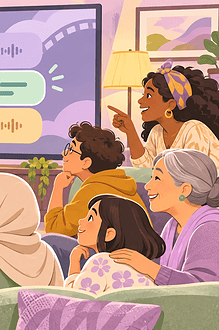


A caption icon or audio-description badge tells you that an access feature exists. It does not tell you whether the track is available in the family’s language, accurate for that version, easy to read on the chosen screen or comfortable for the child who will use it.
Run a five-minute access test before movie night. The child should help judge whether the setup works.
Know what each feature provides
Captions represent spoken dialogue and meaningful non-speech audio such as music cues, alarms or a door slamming. Subtitles may translate dialogue without including all sound information. The W3C Web Accessibility Initiative explains that captions support Deaf and hard-of-hearing viewers and others who process written information more easily.
Audio description adds spoken information about important visual action, expressions, settings, scene changes and on-screen text. It is not the same as louder dialogue or a screen reader that announces menus.
Check the exact title, version and device
- Open the film on the device the family will actually use.
- Find the audio and subtitle menu before inviting everyone to sit down.
- Confirm the needed language and access track appear for that title.
- Play a scene with dialogue, music and visible action.
- Download the title first if internet reliability matters, then recheck the downloaded track.
Platforms may offer different tracks by country, device, licensing agreement or download. A feature listed on a website may not appear on an older television app.
Review caption readability and accuracy
Ask the child whether text is large enough, stays on screen long enough and contrasts with the background. Check whether speaker changes and important sounds are understandable. If the platform allows customization, test font size, colour, shadow and background.
Automatic captions can contain mistakes, especially with names, accents, songs and overlapping speech. Do not blame the child if confusing captions make the plot hard to follow. Pause, clarify or choose a better track.
Test audio description with the child
Audio description should add information without covering essential dialogue. Let the child compare a short scene with the feature on and off. Some viewers want description throughout; others prefer a companion to answer occasional questions. Follow the user’s preference rather than assuming one access method fits everyone.
Netflix’s accessibility documentation is one platform example: it describes customizable captions, audio description, screen-reader support and playback controls. Menus change, so use the service’s current help page rather than memorizing steps.
Make the controls reachable
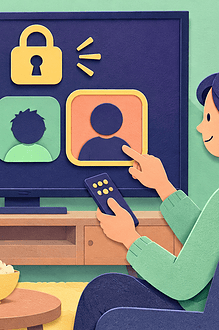
Place the remote, keyboard or switch where the child can pause and adjust settings. Teach one task at a time: open the access menu, change track, return to playback. EdCaptain’s guide to trying built-in accessibility tools first helps families evaluate features without unnecessary purchases. The child-led app accessibility trial provides a similar task-based checklist.
Plan for shared preferences
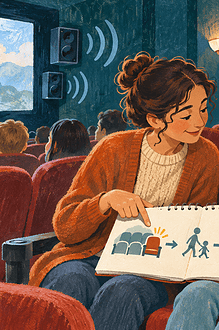
One viewer may need captions while another finds moving text distracting. Keep captions on when they provide access; then adjust position, size, seating or lighting rather than asking the person who needs them to go without. Audio description can often play through personal listening equipment, but only if the venue or device supports it and the setup does not isolate the child from family conversation.
Report a problem precisely
If a track is missing or wrong, record the title, episode or edition, language, device, app version and approximate time of the problem. Use the platform’s accessibility feedback route. Do not publicly post a child’s disability details to prove that the issue matters.
Accessible movie night begins before the opening scene. A short real-world test turns a badge into evidence that the feature works for this child, on this device, for this film.