
By EdCaptain editorial desk · Published
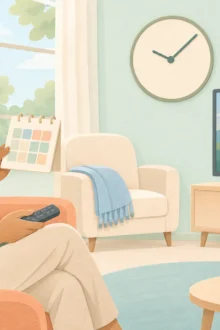
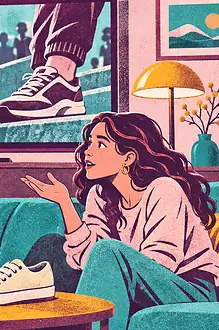
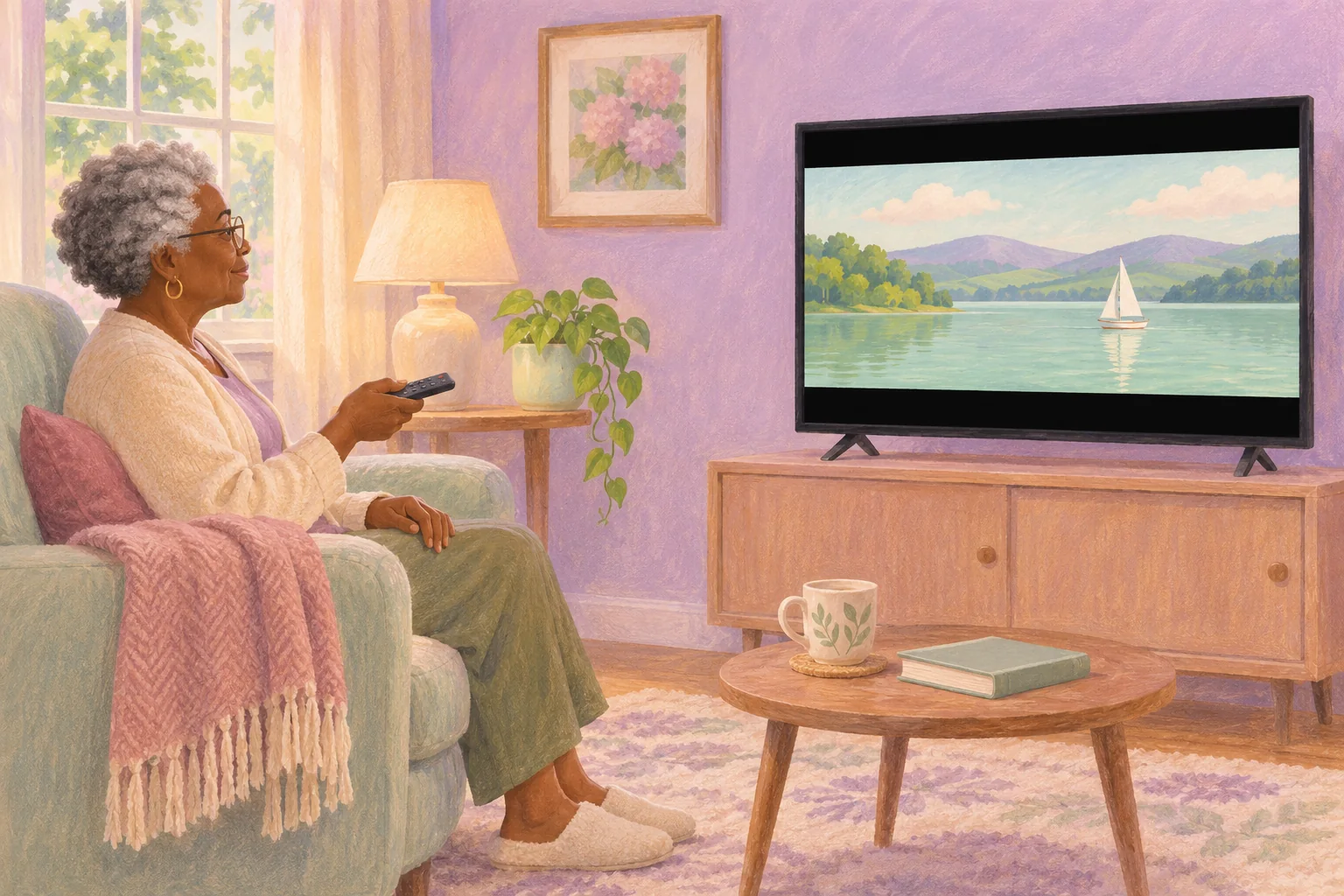
Someone reaches for the remote: “Why is the film not filling the television?” A quick zoom makes the borders disappear, but now a face at the edge is missing. It is an easy way for a small setup question to interrupt the evening.
Black borders can be part of displaying the film correctly. The useful question is whether you can see the intended picture comfortably, with the access features your family uses. This caregiver checklist helps you check that without changing a whole collection of settings at once.
First, look at what is actually wrong
Pause on an ordinary scene and describe the problem. Is there a border above and below a complete picture? Are there bars at the sides? Or are heads, objects and words visibly cut off? “There is unused screen” and “we are losing part of the film” need different responses.
Netflix explains that black bars can let a title retain its original format without stretching it to match the screen. Some mobile devices offer zoom, but that can trim the video’s sides. A larger-looking image is therefore not automatically a more complete one.
You can tell the family: “The screen and this film have different shapes. Let’s see the whole picture before we decide whether anything needs changing.” There is no need to make a child sit through a technical lesson or treat the borders as wasted space that must be removed.
Make a short check, not a remote-control experiment
Keep the film paused while one adult handles the controls. If the setup is already comfortable and nothing is missing, you may be finished. Otherwise:
- Record the starting point. Note the app or connected player, TV input and current picture-size setting. A private photo of the settings menu can help you restore it; avoid photographing account information.
- Check the television’s own menu. Does that look complete and normally shaped? If the menu itself is distorted, follow the manufacturer’s support route rather than assuming the film is responsible.
- Compare another familiar source. Try another title in the same app or another input you already use. Notice whether the problem follows one film, the app or the connected device. Different films can legitimately have different borders.
- Consult the actual model’s instructions. Find picture size, aspect ratio or display-area guidance. Change one relevant setting and compare the same scene before changing anything else.
- Recheck after leaving the menu. Confirm that faces, edge details and necessary text remain visible during playback. Restore the starting setting if the change makes things worse.
Sony’s picture-format guidance uses menu and input checks to help locate a problem. It also warns that zoom and wide modes can stretch or cut the picture, with available controls differing by model. Do not apply a setting just because a different television calls it “Full” or “Normal”.
Check the player as well as the television
A streaming box, disc player or connected computer introduces another place where picture output can be changed. If one input is wrong while the TV’s own apps look fine, write down which device supplies that input and look up its supported setup.
Netflix’s cropped-video troubleshooting points to device output and television picture settings. For its website on a computer, it gives a page-zoom reset: Command + 0 on a Mac, or Ctrl + 0 on Windows and Chromebook. This is a specific browser-page check, not a universal television shortcut.
Ask before changing a shared computer’s zoom or accessibility controls. Someone may need magnification to use the device. If resetting page zoom makes menus unreadable, restore their preferred setup and choose another supported way to watch. Do not treat every enlarged display as an accidental setting.
Avoid a factory reset as a first experiment. It can create extra work with sign-ins and established preferences. If the manual or support service recommends a larger reset, understand what will change and make sure the person responsible for the device is involved.
Keep captions and access needs in the decision
After a picture-size adjustment, play a brief scene with the captions or subtitles your family actually uses. Check whole lines, including words near the screen edge. Ask the viewer whether they can read comfortably from their usual seat.
If zoom removes text or important action, return to a setting that preserves access. Do not ask someone to manage without captions just to fill the television. For track selection, text appearance and a fuller access trial, use our caption and audio-description checklist.
If the complete image feels too small for a viewer, discuss an alternative supported screen or a comfortable seating arrangement with them. Keep walkways clear and the screen securely positioned; do not balance a device on an improvised stack. A useful picture is one the viewer can follow, not simply one that touches every edge.
Know when to stop adjusting
Borders alone are not a reason to buy a new cable, app or television. Keep the complete, correctly shaped image when it works for the family. If a problem persists, save a concise description for support: TV model, app or player, input, title, whether menus are affected, and which reversible check changed the result.
Do not install an unfamiliar “screen fixer” or hand over an account password to someone offering a quick solution. Use the device maker’s or streaming service’s official help route. If access remains unusable tonight, choose a workable alternative instead of turning the evening into a repair session.
Once the picture works, close the settings and return to the shared film. Our guide to stopping autoplay can help keep that one chosen film from becoming an unplanned viewing session.
Sources and further reading
- Netflix Help: why black bars can preserve the original format
- Netflix Help: device checks for zoomed or cropped video
- Sony Support: picture shape, input checks and model-specific controls
Read our editorial policy and review methodology.