

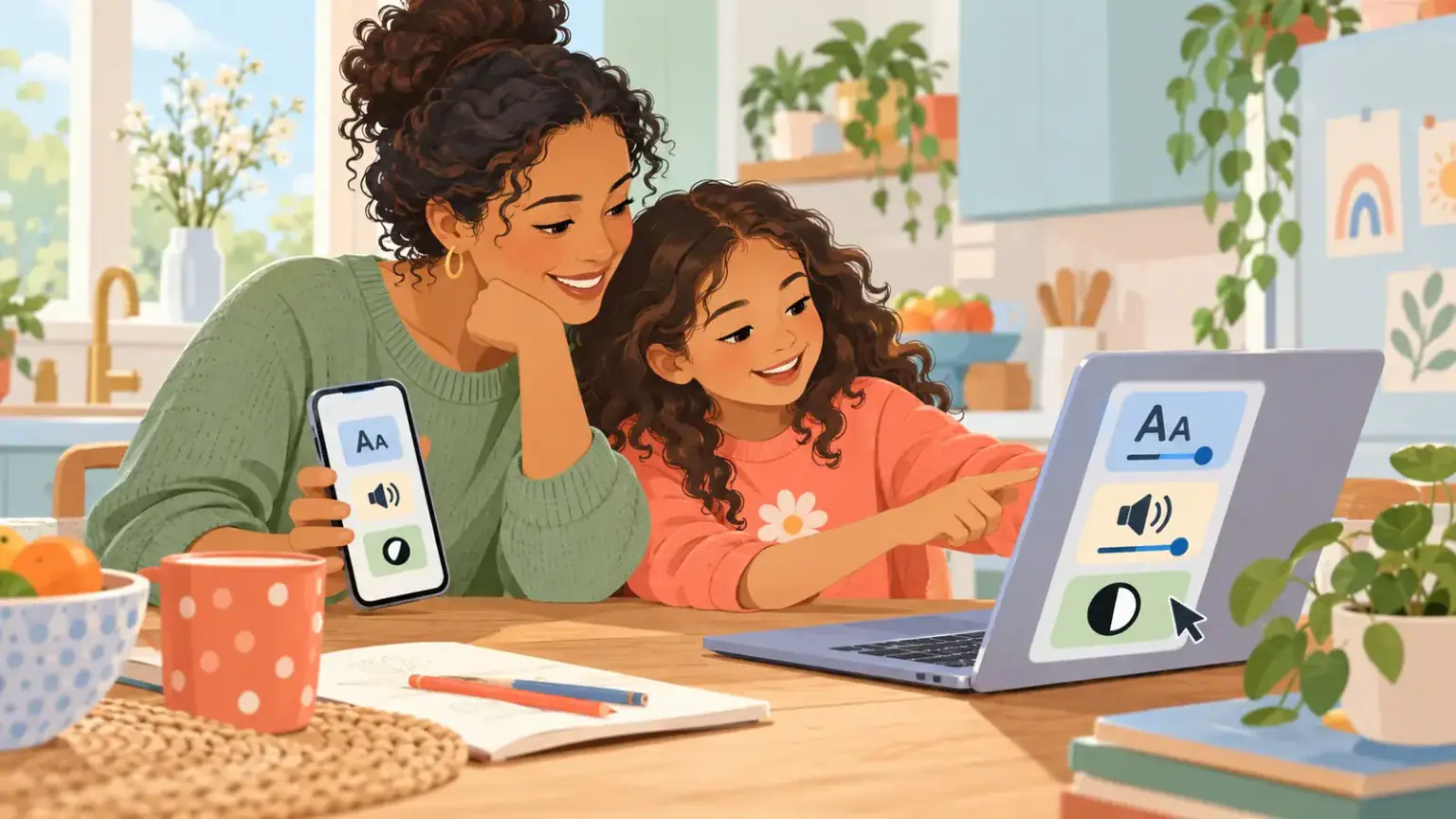
A new device is not always the best first answer when a child struggles to read a screen, type a sentence or control a pointer. Phones, tablets and laptops already include useful accessibility features. A short, calm trial can show whether one of them removes the barrier—or clarifies what a more specialized tool must do.
Begin with one real task, not the settings menu. Ask, “What are you trying to do, and where does it get hard?” The answer might be reading homework without losing the line, typing without holding several keys at once, seeing a small cursor, or listening to instructions while making something. This follows the same task-first logic in choosing assistive technology around a child’s goal and environment.
Match the barrier to one feature
- Text is tiring to see: try larger text, zoom, a magnifier, stronger contrast or reduced motion.
- Reading print blocks access to meaning: try selected-text reading or text-to-speech.
- Typing slows ideas down: try dictation, an on-screen keyboard or word suggestions.
- Key combinations are difficult: try sticky keys, which let keys be pressed in sequence.
- The pointer is hard to find or control: enlarge it, change its colour, highlight it or test automatic clicking.
Google’s current Chromebook guidance lists these kinds of tools, including Select-to-speak, dictation, magnification, sticky keys, switch access and pointer adjustments. Apple’s iPhone guidance similarly explains how onscreen or selected text can be spoken and how families can adjust voice, language and speaking rate. Names and menu locations can change after software updates, so use the manufacturer’s current instructions for the device in front of you.
Run a 15-minute home trial
- Let the child choose a familiar, low-pressure task.
- Change only one setting. Keep a note or screenshot of the original setting so it is easy to restore.
- Give the child two or three minutes to explore before helping.
- Watch effort as well as accuracy. Are shoulders relaxed? Is the child still hunting for controls? Can they recover from a mistake?
- Ask for the child’s verdict: “Did this make the task easier, harder or just different?”
A useful trial does not have to look perfect. The goal is to learn. A feature may work for long reading but annoy the child during a quick game. Another may help at home but be impractical in a noisy classroom. Record the task, the setting and what happened. The structured questions in this assistive-technology trial guide can help families and school teams compare observations.
Keep the child in control
Do not switch on every feature “just in case.” Extra voices, highlights and animations can create more work. Agree on a quick way to pause the tool. For younger children, an adult can say, “We are testing the big pointer for this puzzle. You can tell me to stop.” Older children can choose shortcuts, voices and when classmates may see or hear a feature.
Protect privacy too. Dictation may send speech to a service, and spoken text can reveal private material to people nearby. Check the device’s privacy information, use headphones when appropriate, and avoid testing with passwords, health details or personal messages.
Know when built-in is not enough
A promising feature is a starting point, not an assessment. Ask the school’s assistive-technology lead, occupational therapist, speech-language professional or another qualified practitioner for help when positioning, vision, hearing, motor access or communication needs are complex. Bring your notes: they are more useful than saying only that a device “didn’t work.” If a feature helps, build a backup plan and teach the child how to find it again after an update; keeping assistive technology ready is part of access.
Make the final decision over several ordinary days. Keep the feature only if the child chooses it and it improves participation without creating a larger barrier. A no-cost setting can be valuable, but “free” does not mean effortless: children still need time, instruction and permission to use it. Revisit the choice after software updates or when the task changes.
Use a simple comparison note
Write down the date, task, feature and the child’s own rating. Add one sentence about effort: “finished independently,” “needed three reminders,” or “stopped because the sound was distracting.” Do not turn the note into surveillance. Its purpose is to remember patterns across home and school and to give the child evidence for their preference. When adults disagree, return to the agreed task and observations rather than debating which device is supposed to be best.