
An app can look playful, educational and age-appropriate while asking for far more information than it needs. The privacy panel in an app store is a useful place to begin, but it is not a safety certificate. It is a summary, usually supplied by the developer, that helps you decide what to investigate before you tap Install.
Set aside five quiet minutes and read the listing with the same care you would give a registration form. You are not trying to become a privacy lawyer. You are looking for a sensible match between the app’s job and the information it wants.
Start with the app’s main job
Say the purpose in one sentence: “This app lets my child practise spelling,” or “This game lets friends build together.” Then compare that purpose with the data categories listed. A drawing app may reasonably need access to photos when a child chooses to import a picture. Continuous location, contacts or advertising identifiers would need a much clearer explanation.
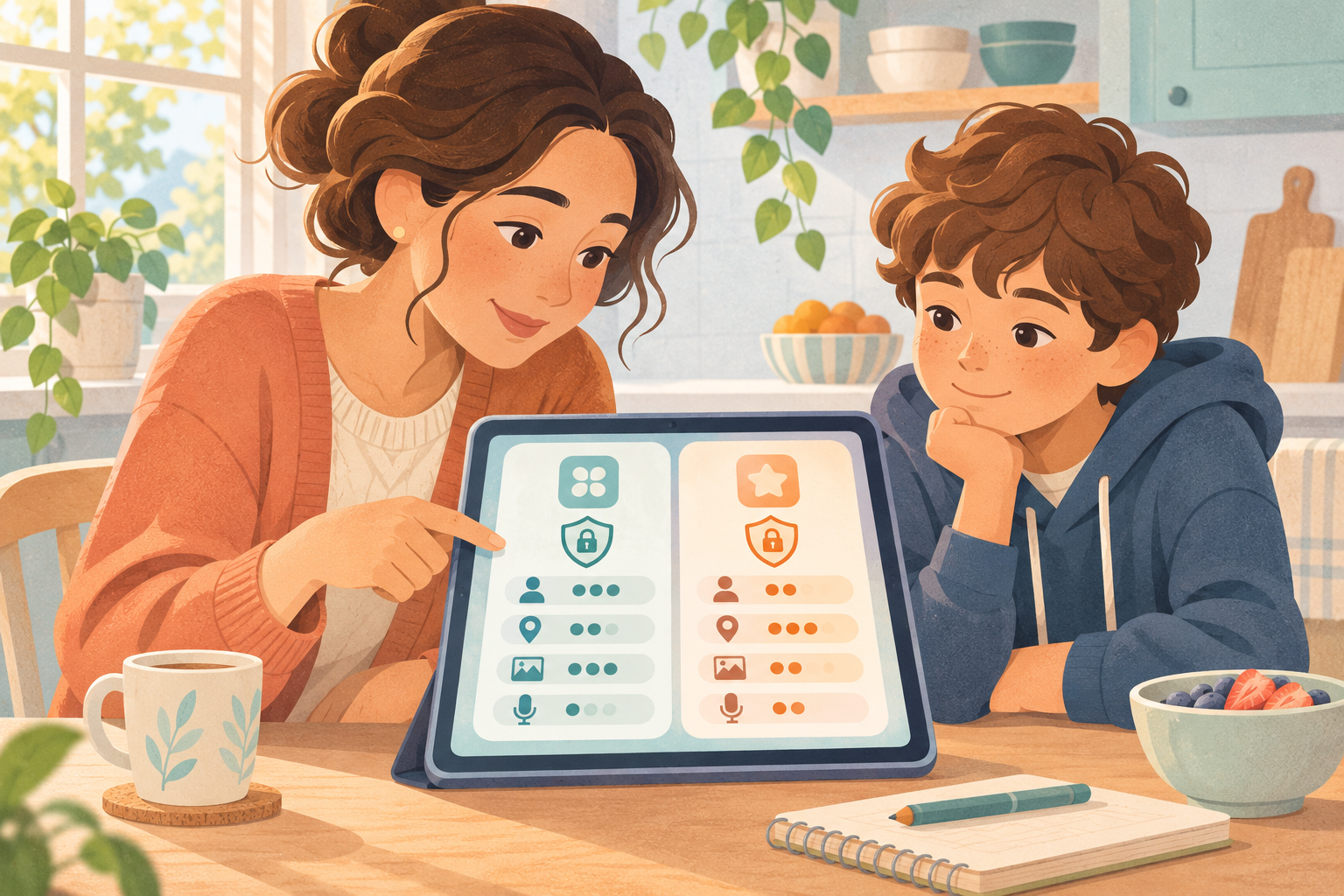
Look separately at data collected, data linked to an identity and data used to track activity across other services. Apple explains that its App Store privacy information is reported by developers. Google Play’s Data safety section similarly describes collection, sharing, security and deletion practices. These disclosures are helpful for comparison, but you should still check permissions and what happens during real use.
Use a five-question label check
- What information is named? Note location, contacts, photos, audio, identifiers, purchases, browsing or usage data.
- Why does the app say it needs it? “App functionality” is broad. See whether the explanation makes sense for the feature your child will use.
- Is information shared? Check whether sharing is necessary for service providers or described for advertising, analytics or other purposes.
- Can the child use a smaller-data version? A guest mode, local profile or parent-managed account may avoid an unnecessary personal account.
- How can the account and data be deleted? Find the path now, not months later when you are trying to close it.
Do not confuse “not collected” with “cannot access”
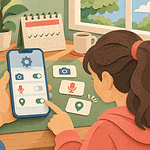
A store label and a device permission answer different questions. The label describes the developer’s stated data practices. A permission controls whether the app may use something on the device, such as the microphone, camera or precise location. After installation, approve only the access needed for the feature in front of you. “Allow once” or “while using the app” can be a better starting point than permanent access.
For a fuller household review, EdCaptain’s connected-toy and voice-assistant privacy audit uses the same useful principle: begin with the device’s real job, then reduce data access that does not support it. If siblings share the device, the shared-family-device agreement can help separate profiles and downloads.
Match the conversation to the child’s age
For a younger child, keep the explanation concrete: “This button wants to know where we are. The game works without that, so we are choosing no.” A school-age child can help spot permissions that do not match the app’s purpose. With a teenager, compare two similar apps and invite them to make the case for the lower-data choice. The goal is not surveillance; it is shared judgement that becomes more independent over time.
Pause when the listing is vague
Do not install immediately if the developer is unclear, the privacy policy is missing, the account cannot be deleted, or a simple child activity appears tied to extensive tracking. You can contact the developer, ask a school why a particular service is required, or choose an offline alternative. A paid app is not automatically private, and a free app is not automatically unsafe; follow the stated practices and the actual controls.
Recheck the label after a major update and review device permissions after the first week. If the app behaves differently from its description, stop using it while you investigate.