By EdCaptain editorial desk · Published
The message says to download a reading app. You type its name into the store and get several plausible results: similar colours, almost the same title, perhaps a version labelled “school” or “kids”. Which one should receive the class code?
Pause before installing or signing in. A name is a starting point for finding an app, but the useful confirmation is the exact listing that the school, club or provider intended. You do not need to decide which result looks most professional.
Get back to the person who recommended it
Ask for the direct store link for your device and the developer name shown on that listing. If the recommendation came through school, use a contact route you already know, such as the school portal or established office address. A forwarded screenshot may omit the part that distinguishes one app from another.
Try: “There are several apps with this name. Could you send the exact link for an Android tablet or iPad, and confirm the developer? Is there a particular school version?” State which device you have; a link for another platform may not settle the question.
If someone sends a new or unexpected download message, confirm it through the established route before following it. Avoid treating a familiar logo or the words “official app” as independent evidence of who sent the message.
Compare the listing, not just the icon
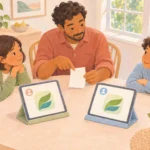
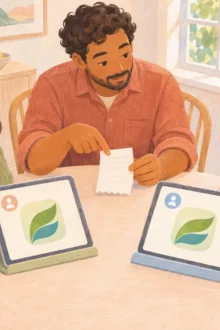
Open the confirmed recommendation alongside the candidate listing and check these details:
| Detail | What to establish |
|---|---|
| Exact store link | Does the recommendation open this specific product page, rather than a general search? |
| Developer or seller | Does the displayed organisation match the name the recommender confirmed? |
| Platform and edition | Is this the intended version for this device, including any school, home or companion edition? |
| Purpose | Does the description cover the task your child was asked to do? |
| Support route | Can the recognised provider or school explain how this listing relates to its service? |
A developer may use a company name different from the product’s brand. That is a question to resolve, not automatic proof of a fake. Equally, a matching-looking name is not enough if you cannot establish the relationship.
Keep the comparison factual. “This page lists a different developer from the one you named” gives support something to check. “This app must be a scam” goes beyond what a mismatch alone establishes.
Find the listed support information
Google Play’s developer-contact guidance directs Android users to open the app’s detail page and tap App support to see the contact information. Apple’s contact guidance describes App Support on an iPhone or iPad app’s product page, in the Ratings & Reviews section. Menu wording and availability can vary.
Use that information as part of the comparison. If the identity of the listing itself is in doubt, do not rely solely on someone answering through that listing to prove its authenticity. Confirm the relationship with the school or provider through a separately established contact.
You can ask: “Is this store listing yours? The developer is shown as this name. We were expecting your reading activity, but this page describes a different service.” Send the listing link rather than a child’s password, class code or personal profile.
Similar branding deserves a check, not a guess
Google Play’s impersonation policy prohibits misleading affiliation claims and identifies confusing titles, icons and developer names among the issues it addresses. That policy explains why an icon alone is a poor identity test; it does not certify every result you encounter.
Ratings, review counts, a polished description or a familiar colour scheme also do not answer the specific question: “Is this the app our provider intended?” You can leave the choice unresolved while asking for confirmation. There is no need to install several candidates and try the same school credentials in each.
Do not bypass the normal installation route, turn off device protections or accept an unrelated download because the expected listing is difficult to find. Ask whether the app is unavailable for your device or location and what supported alternative the provider offers.
Once identity is confirmed, review family fit
Finding the intended product does not finish the decision about using it. Check its purpose, age information, purchases, privacy, communication features and accessibility for your child’s actual task.
For school use, our school-required app guide helps clarify managed accounts, approval, support and equivalent access. The guide to reading app privacy labels covers the separate question of what information the developer says it collects.
Keep the confirmed store link with the adult’s setup instructions. That makes it easier for another caregiver to find the same product without repeating the search. Avoid putting passwords or pupil codes into a group chat alongside it.
If a candidate app is already installed
Stop entering information while you check what it is. Record the exact listing, developer and what happened: installed only, account created, school credentials entered, permissions granted, or a payment made. Those situations need different follow-up; installation alone does not prove that data or money was stolen.
Tell the school or recognised provider if its credentials or codes were used in an unconfirmed app. Ask for its account-security instructions through the established contact. For device or payment concerns, use the device maker’s, account provider’s or payment provider’s official help route rather than a number in an unexpected message.
If you report a suspected impersonation to the store, describe the evidence you have and keep the report confirmation. Do not post a child’s details as proof. You can also ask a trusted technical support service to help assess the installed app when its identity remains unclear.
Keep the child out of the blame: “The names were confusing. We’re checking the exact app before we use it.” The adult’s job is to resolve the download, and the child can use an agreed alternative while that happens.
Sources and further reading
- Google Play: finding an app’s listed developer contact
- Apple: finding App Support for an app
- Google Play: misleading app identities and affiliation claims
Read our editorial policy and review methodology.