
By EdCaptain editorial desk · Published
The worksheet opens, but its instructions say to watch a video. The video needs a connection. The answer button lives on another page. What looked like a downloaded lesson is only one piece of it.
An offline plan needs more than saved links. For children aged 6–12, prepare one small piece of learning that has its explanation, task, accessible materials and a way to check understanding in the same place. This can help with an occasional outage or a connection that is unreliable most days.
Start with what must still be possible
Choose a familiar learning priority rather than collecting a week of unrelated worksheets. Write one sentence: “We will read a short passage and explain why the character changed their mind,” for example.
Then ask what that requires. A child needs the passage, any essential background, the instruction and someone or something that helps them check their response. If a missing animation supplies the entire explanation, a printed question page will not replace it.
The Education Endowment Foundation’s homework guidance highlights clear purposes, links to taught work, feedback and barriers to resources. That evidence concerns school homework; it does not prove that this particular home pack will improve attainment. It does offer useful questions to ask before sending a child away with a file.
Make a short list of dependencies
For one proposed lesson, check:
- Teaching: where does the explanation come from if streaming stops?
- Task: are all questions, diagrams and relevant pages available?
- Tools: does the activity need a printer, another device, an account or a specialist material?
- Access: can the child read, hear or navigate the saved version with their usual supports?
- Response: where can they work, and how will they receive feedback?
A bookmark stores a route to something; do not treat it as proof that the content is stored locally. Nor should you assume that a downloaded slide deck includes an embedded video or that an app’s interactive task works offline. Test the actual resource on the actual device.
Keep the first pack deliberately small
Use a folder, envelope or a clearly named local folder on a device. Include one explanation, one manageable task, any permitted reference material and a short instruction for getting help. An adult can keep answer notes separately so checking does not become copying.
A paper notebook and a book you already have may be enough. No printer? Ask the school or provider whether the child may answer in a notebook using question numbers, or request a suitable paper copy. Do not make a child copy a whole worksheet before they can begin the learning.
For school-set work, try: “Our connection cannot reliably play the lesson video. What is the essential learning, and can you provide an explanation and task we can use without logging in? How should we return it for feedback?” Agree the alternative and deadline rather than quietly substituting unrelated work.
For home education, our one-goal lesson guide can help you supply the teaching around a saved task. A file is a resource, not an automatic teacher.
Download only through a permitted route
Use the provider’s own download controls and read the conditions for the item. Avoid browser extensions or third-party sites that promise to extract any lesson video. Streaming access does not itself establish permission to copy or redistribute it.
For example, Oak National Academy describes downloadable resources including slides, worksheets and quizzes, and explains how teachers can provide offline copies. That does not mean every element of every lesson is downloadable or suitable for every family.
Oak’s licensing guide distinguishes collections and third-party material, including access and geographic restrictions. Check the exact resource and required attribution before adapting or sharing it; keep its credits. If you are unsure whether your intended use is allowed, ask the provider or choose another resource. You can build your pack from your own examples and books without downloading a lesson at all.
Do a connection-off rehearsal
When nobody needs an urgent call or communication aid, disconnect only the learning device from its network briefly. Do not switch off the household router or interfere with another person’s access. Reopen the saved materials from where the child will find them.
- Find it. Can the child locate the correct folder or paper pack without searching through adult files?
- Begin it. Read the first instruction. Check that the needed explanation, image or text is actually there.
- Use it. Try a small response with the child’s usual accessibility tools. Check sound, enlargement or text-to-speech where relevant.
- Save it. Close and reopen a harmless practice response. Confirm it remains available locally.
- Ask for help. Rehearse the agreed stop point: mark the question, tell the available adult, or record it to ask later.
Restore the connection afterwards. If the test fails, change one dependency or choose another lesson; do not make the child responsible for repairing the service.
Give each age a useful role
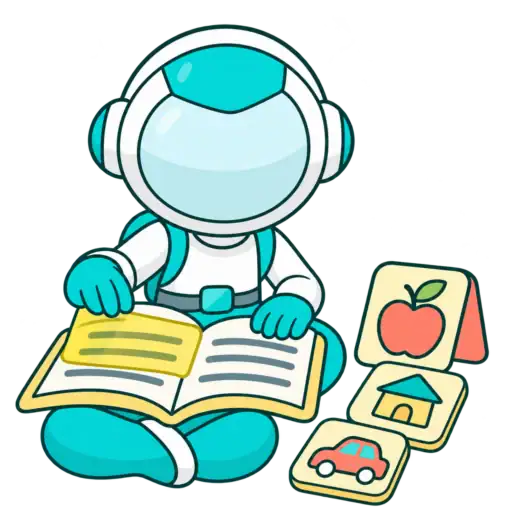
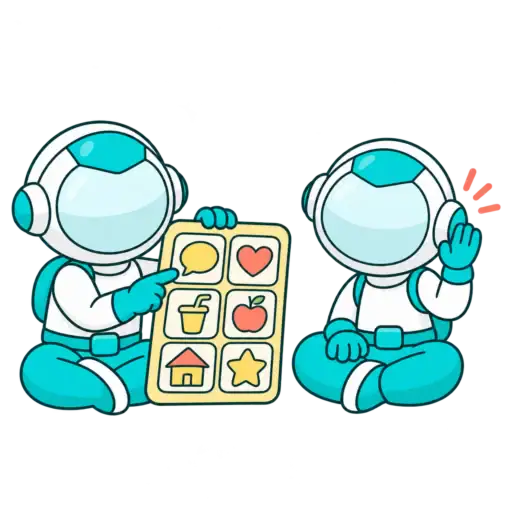
For ages 6–9, let the child choose a recognisable folder picture or paper cover, find the starting page and show where help is written or pictured. An adult supplies the explanation and handles downloads. A child can speak, point or draw instead of typing an answer.
For ages 10–12, invite the child to help list what the task depends on, try the saved version and note a missing part. They can organise a neutral file name such as “reading-practice” without adding their full name or school. Adults still manage permissions, accounts and sharing.
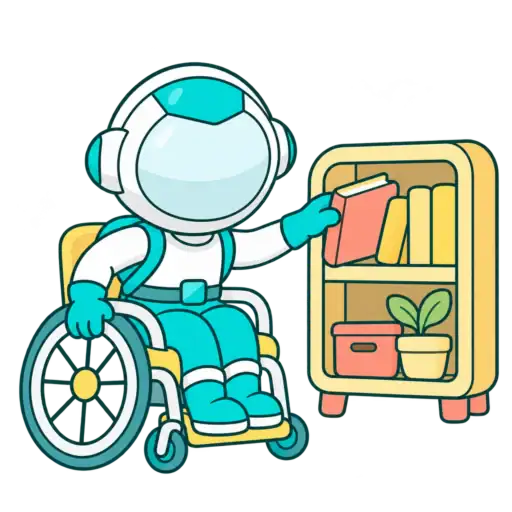
Preserve accessibility support. A printed page is not an equivalent substitute for a child who needs audio, enlarged text or an assistive device. If you cannot provide a usable offline version, ask the school or provider for one. Our shared-device agreement helps protect needed access when several people use the same equipment.
Reconnect without creating a backlog
Keep a brief note of what the child attempted, what they understood and what needs help. When access returns, submit or discuss the work through the agreed route. Check that an upload succeeded before deleting the local copy.
Review the pack after use. Remove obsolete versions and replace only what was missing. If outages happen repeatedly, ask for an ongoing accessible arrangement rather than downloading ever more pages. The useful result is a lesson the child can actually use, with help still available.
Sources and further reading
- EEF: homework purpose, feedback and resource barriers
- Oak: downloadable teaching resources and offline copies
- Oak: licensing, attribution and third-party restrictions
Read our editorial policy and review methodology.