
By EdCaptain editorial desk · Published
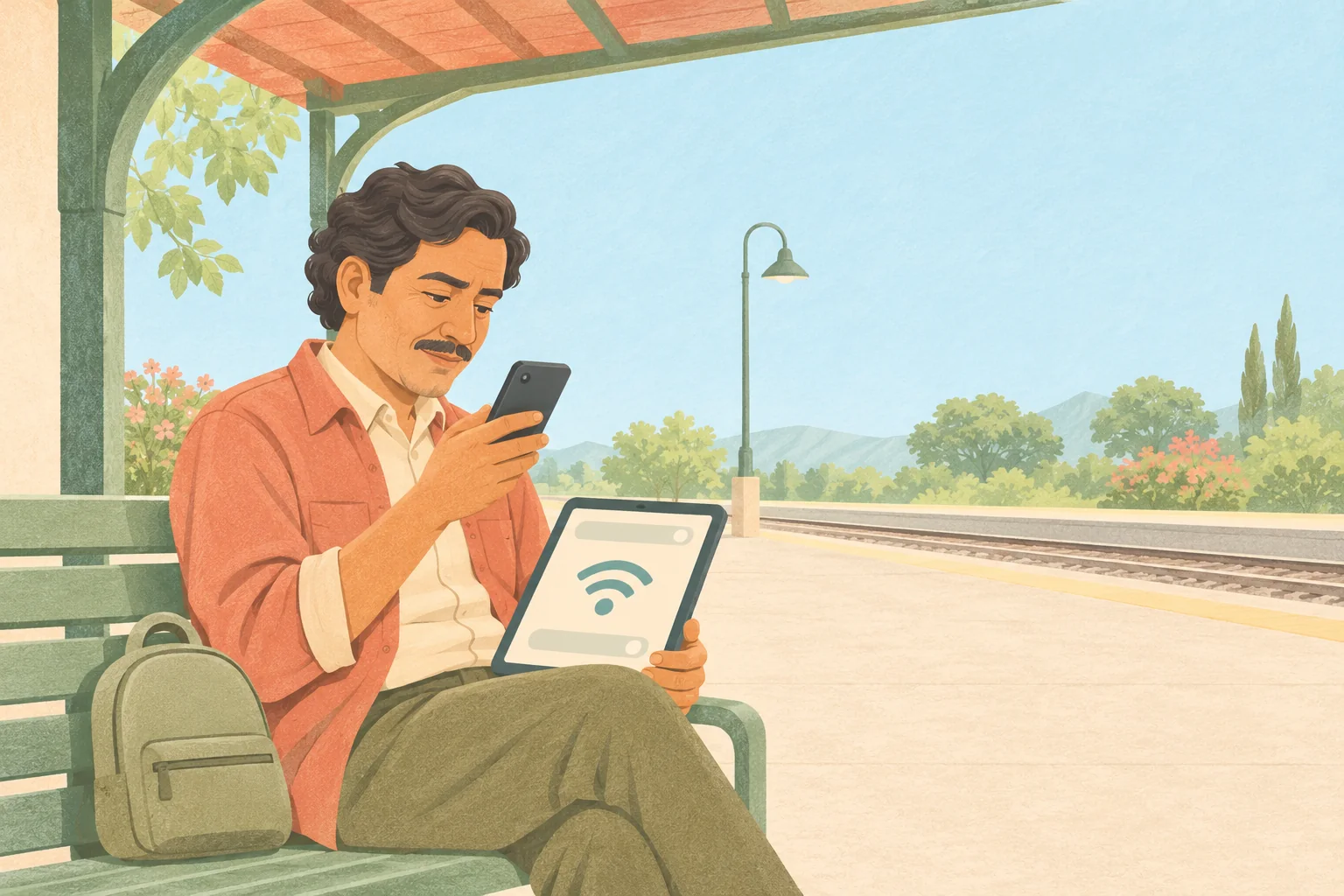
The tablet shows a Wi-Fi connection, an episode starts, and the family assumes the phone’s data allowance is safe. But the tablet may be connected to that phone’s hotspot. Or a playback restriction may be in place while downloads are still allowed over mobile data.
Before handing over a device for a children’s programme, check three things separately: how it connects, how the app plays video and how it downloads. This is a caregiver setup guide, with Netflix and Apple examples. Other apps and devices need their own current instructions.
Decide what you mean by “no mobile data”
Give the boundary a concrete meaning. You might allow viewing only through your home broadband, permit a pre-agreed amount on a journey, or avoid using the phone’s mobile connection for programmes altogether. Those are different arrangements.
Ask the adult who manages the mobile account what the actual plan allows, how usage is shown and which alerts or limits are available. Check roaming and hotspot terms before travel rather than assuming the ordinary allowance applies everywhere. Do not use a video-quality setting as proof that there can be no extra charge.
Keep the decision with adults. “We are saving the phone connection for other things” is enough explanation for a child. They should not have to judge a billing warning or decide whether to purchase more data.
First, identify the connection
Look at the network being used, not only the Wi-Fi symbol. Apple explains that Personal Hotspot shares an iPhone or cellular iPad’s mobile connection through a temporary network. A tablet joining that network over Wi-Fi is therefore still relying on someone’s cellular connection.
Ask whose connection supplies the internet. If a relative says, “I’ll connect it to my phone,” confirm that they understand the planned viewing and agree to its data use before starting. Do not treat a shared hotspot as free simply because your device has no SIM card.
For Apple Personal Hotspot, use the official instructions to disconnect when it is no longer needed. Keep necessary communication available; do not turn off a caregiver’s whole phone connection without checking what else depends on it.
Then check the playback control
Netflix’s data-use guidance distinguishes mobile playback options including Wi-Fi Only, Automatic, Save Data and Maximum Data. Its Wi-Fi Only option restricts streaming to a Wi-Fi connection. That label should not be read as a carrier spending cap or a guarantee about the network supplying the Wi-Fi.
On the current Netflix mobile-app route, open My Netflix, tap the profile name, choose App Settings, then find Cellular Data Usage under Video Playback. Choose the option that matches the adult’s plan. If your app looks different, use the linked help page rather than guessing from a similar menu.
If mobile viewing is intentionally allowed, a data-saving choice can affect picture quality. Check that necessary text and details remain usable. An unreadable picture is not a useful compromise; choose another supported way to watch or postpone the programme instead.
Downloads have their own switch
Do not finish the check at playback. Netflix’s download guidance describes a separate Wi-Fi Only switch under Downloads in App Settings. Keep it on when the intention is to wait for Wi-Fi rather than use cellular data for downloading.
A message saying the app is waiting for Wi-Fi may mean that this boundary is working. Do not automatically approve a prompt allowing cellular downloads just to make the warning disappear. Read the message before deciding.
The help page also notes that pending downloads can prevent a setting from being changed. Follow its current instructions to cancel pending items or wait for them to finish. Check the connection first so that “finish” does not become an unplanned mobile download.
When preparing episodes in advance, use the service’s supported download feature where your plan, device and chosen title permit it. Check that the intended episode is actually available before promising it for a journey. This is preparation for a viewing choice, not a guarantee that every programme can be downloaded.
Make one deliberate test before handover
Use a short adult check rather than leaving a full episode running to find out what happens:
- Name the network. Confirm whether it is home broadband, another agreed connection or a phone hotspot.
- Read back both controls. Check the playback choice and download switch separately on the actual device.
- Review pending activity. Notice queued downloads or a prompt that asks to change the connection rule.
- Confirm the viewing route. Identify whether the selected episode will be streamed or opened through the app’s available downloads.
- Explain the handover. Tell the next caregiver what is allowed and what to do if the app asks for permission.
You do not need to deliberately spend mobile data to prove that a restriction works. If the device’s behaviour remains unclear, pause and consult official support or the account holder. Keep a non-screen alternative available for the wait.
Keep access, content and stopping points separate
A data control does not decide which programmes are suitable or how long the family will watch. Keep the usual child profile and access arrangements in place; our streaming-profile and PIN checklist covers those settings.
Agree on the episode or stopping point before starting. The guide to stopping after an episode offers practical language when the story invites another one. A lower-data setting is not a reason to extend the session.
Recheck after an app update, a device change or a different caregiver’s hotspot. Keep a brief note of the chosen settings and who manages the connection. That small adult check is more reliable than expecting a child to recognise every network change.
Sources and further reading
- Netflix Help: playback data settings and picture-quality trade-offs
- Netflix Help: the separate download Wi-Fi setting and permission prompts
- Apple Support: how Personal Hotspot shares a cellular connection
Read our editorial policy and review methodology.